Introduction
Resolution
This Approval:
- Only needs to be completed once per organisation.
- Applies to all users in your Microsoft 365 tenant
What you need
- The approval link: Admin Consent - Spindle Document Distribution
- A Microsoft 365 administrator account
Approving the new Microsoft Entra ID application
- Open a web browser and go to: https://admin-consent.draycir.com
- Click Continue to Microsoft to Grant Consent
- This will redirect you to Microsoft Entra ID to sign in (if required) and initiate the administrator consent process for your Microsoft 365 tenant.
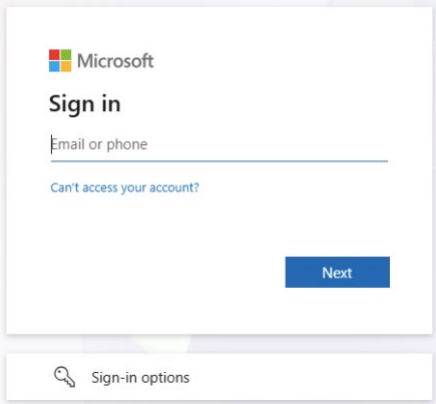
- Sign in using a Microsoft 365 administrator account for your organisation.
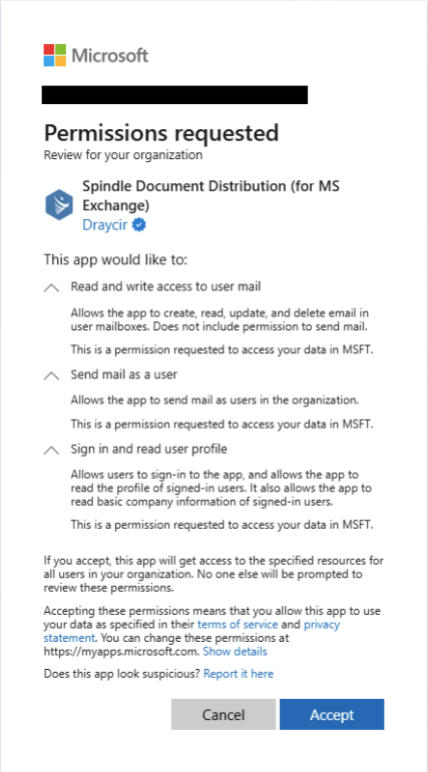
- Review the permissions shown on screen. These permissions allow Spindle Document Distribution to:
- Send emails via Exchange Online
- Access the signed-in user’s mailbox for email delivery
- Read basic user profile information
Note: These permissions are required solely to allow Spindle Document Distribution to send emails via Exchange Online
You will be redirected to a page confirming that administrator approval was successful. If you do not see this page, double check under:
Entra Portal > Enterprise Applications > All applications > Looks for "Spindle Document Distribution (for MS Exchange)

If this is visible under Enterprise Applications, then consent has been successfully granted to all users in your Microsoft 365 tenant.
Please note, if consent has not been given, the "traditional" method of providing consent can still be used via signing into the Exchange connector as an admin within Spindle Document Distribution Tools, or attempting to process a document to cause the login window to appear (only applicable in version 8.16+).
Version 8.15 Only: The login prompt will not appear when attempting to distribute documents. Consent must therefore be provided by signing into the Exchange connector within Spindle Document Distribution Tools, or via the recommended pre-authorisation website.
Please note that using this method may cause delays in being able to distribute documents, as it will require the admin user for your tenant to be present to provide consent. We recommend the pre-authorisation site mentioned above is used in all cases where possible.
Was this article helpful?
That’s Great!
Thank you for your feedback
Sorry! We couldn't be helpful
Thank you for your feedback
Feedback sent
We appreciate your effort and will try to fix the article